If your WordPress admin area suddenly looks wrong after updating to WordPress 7.0, the problem is almost never WordPress 7.0 being broken.
It is usually a plugin, theme, custom block, or caching layer that has not caught up with the biggest structural change in this release: the new React-based admin interface that replaces the old list tables.
This guide separates what WordPress 7.0 actually changed from the older, unrelated issues that people often blame on it, then walks through a safe way to diagnose and fix a backend that looks broken.
Quick answer: Why does my WordPress dashboard look broken after 7.0?
In most cases, it is a compatibility gap, not a WordPress fault. WordPress 7.0 replaced the classic Posts, Pages, and Media list tables with a new React-based interface called DataViews, and moved the block editor into an iframe.
Plugins, custom blocks, or meta boxes built for the old structure can render incorrectly until they are updated.
A dashboard that looks distorted after an update does not mean your site was hacked or that the WordPress installation is corrupt. It almost always points to one specific component that needs an update or a fix.
What actually changed in WordPress 7.0
WordPress 7.0 "Armstrong" was released on 20 May 2026 and is the most architecturally significant release in years. It is not a routine maintenance update, which is why it can surface compatibility problems that smaller releases do not.
The changes most likely to make your admin area look or behave differently:
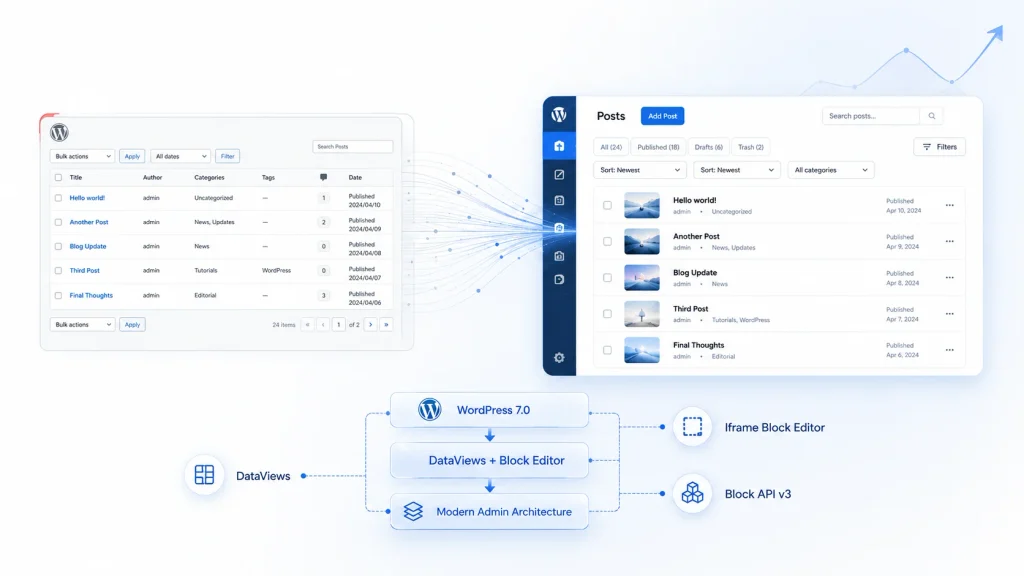
- DataViews replaced the old WP_List_Table interface on the Posts, Pages, and Media screens with a faster, filterable, app-like view. Custom post types still use the classic table for now.
- The block editor now runs inside an iframe, which isolates it from the surrounding page. Older meta boxes and admin JavaScript that reached into the editor's parent document can break.
- Block API version 3 is enforced, and core has moved toward React 19. Custom blocks built on older patterns may be flagged, invalidated, or render incorrectly.
- The minimum requirement is now PHP 7.4, with PHP 8.x recommended. Sites on older PHP cannot upgrade cleanly until the host is updated.
- The admin also received a visual refresh, including a new default color scheme, updated typography, and a Command Palette (Cmd+K or Ctrl+K). If your dashboard simply looks different rather than broken, this refresh may be the reason.
Note that the real-time collaborative editing feature originally planned for 7.0 was pulled before the final release after testing surfaced stability issues, so it is not part of the shipped version.
Is WordPress 7.0 itself broken?
No. WordPress 7.0 shipped as stable core software and has already had maintenance and security updates in the 7.0.x line.
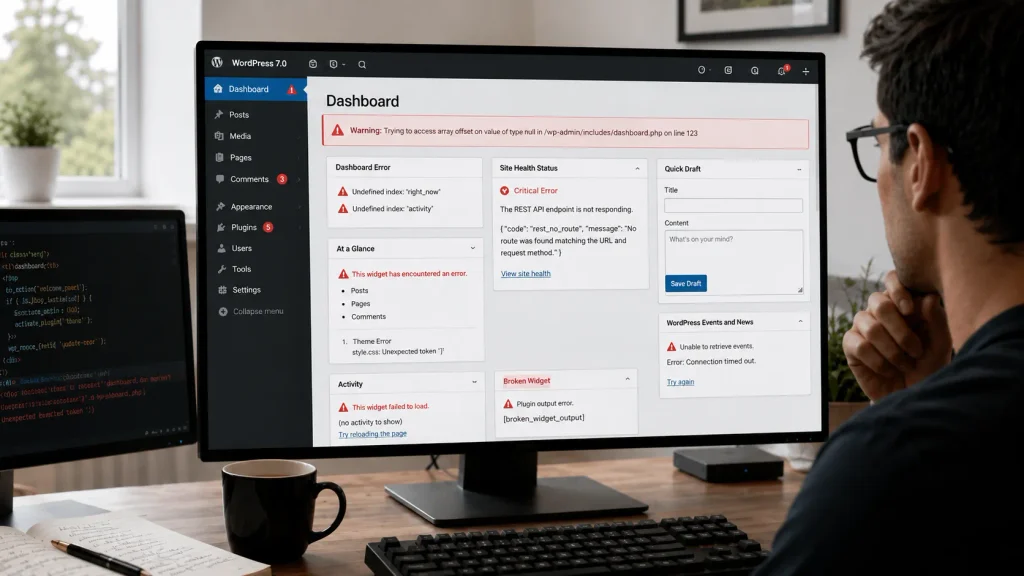
The reported "broken admin" problems are compatibility issues that 7.0 exposes in older plugins, themes, and custom code, not defects in WordPress core.
This distinction matters because it changes the fix. If the core were broken, you would wait for a patch. Because the issue is compatibility, the fix is almost always to update or adjust the specific component that has not adapted to the new admin architecture.
Match your symptom to the likely cause
Where the breakage appears tells you a lot about what is causing it. Use this to narrow the search before you start making any changes.
| What you see | Most likely cause | Where to look first |
| Posts, Pages, or Media list looks stripped down, missing custom columns, filters, or bulk actions | Plugin not yet compatible with the new DataViews interface | Plugins that add columns or filters to those screens |
| Meta boxes are missing, misplaced, or non-functional in the editor | Meta box or admin script incompatible with the iframed editor | Page builders, custom fields, SEO, and editor plugins |
| A custom block shows an error or "invalid content" notice | Block API v3 or React 19 incompatibility | Custom or theme-bundled blocks |
| Entire admin appears as unstyled HTML, everywhere | Admin CSS or JavaScript failing to load (not specific to 7.0) | Caching, CDN, mixed content, file permissions |
| Admin simply looks different, not broken | The intended 7.0 visual refresh | Nothing to fix |
The last two rows are important. An admin area that renders as raw, unstyled HTML across every screen is the classic "admin CSS not loading" problem. It is usually caused by stale cache bundles, a minification plugin concatenating admin styles, a mixed HTTP and HTTPS setup, a misconfigured CDN, or incorrect file permissions.
These issues predate WordPress 7.0 and are frequently blamed on a recent update, simply because the update is when the site was last touched.
Why are admin fields overlapping or meta boxes out of place?
Overlapping fields and displaced meta boxes in the editor are usually caused by the move to the iframed block editor.
Plugins that inject their own controls or reach into the editor's DOM can position elements incorrectly until the plugin ships an update built for the new structure.
This is most common with page builders, custom field frameworks, and SEO plugins that add panels to the editing screen. It is a rendering and compatibility problem, not a sign that your content is damaged.
Why is my WordPress admin CSS not loading at all?
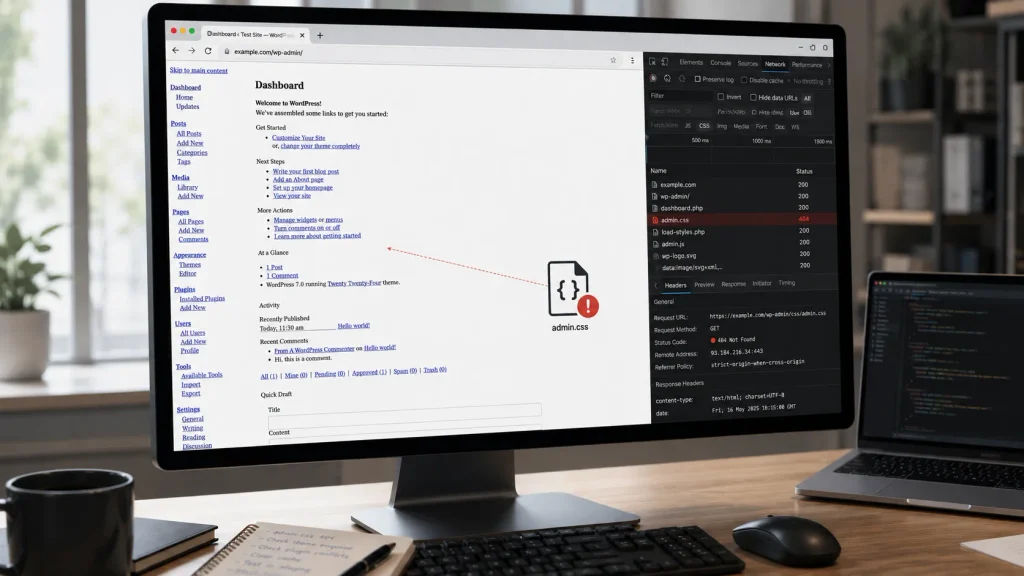
If the entire admin loads as unstyled text on every page, the browser is not receiving the admin stylesheets. This is an asset-loading problem and is generally not caused by WordPress 7.0 itself, even when it appears immediately after the update.
Common causes, in rough order of likelihood:
- Caching and minification. A caching or optimization plugin, your server cache, or a CDN is serving a stale or corrupted admin CSS bundle. Excluding wp-admin from optimization and clearing all caches usually resolves it.
- Mixed content. The site runs on HTTPS, but some assets are requested over HTTP, which the browser blocks.
- File permissions. Incorrect permissions on wp-admin or wp-includes prevent the server from serving stylesheets.
- Custom code. A snippet in functions.php or a small plugin enqueues assets incorrectly or injects conflicting CSS into the admin.
- Plugin conflict. A plugin loads front-end styles into the admin or fails to enqueue its own assets correctly.
How to fix a broken WordPress 7.0 admin dashboard
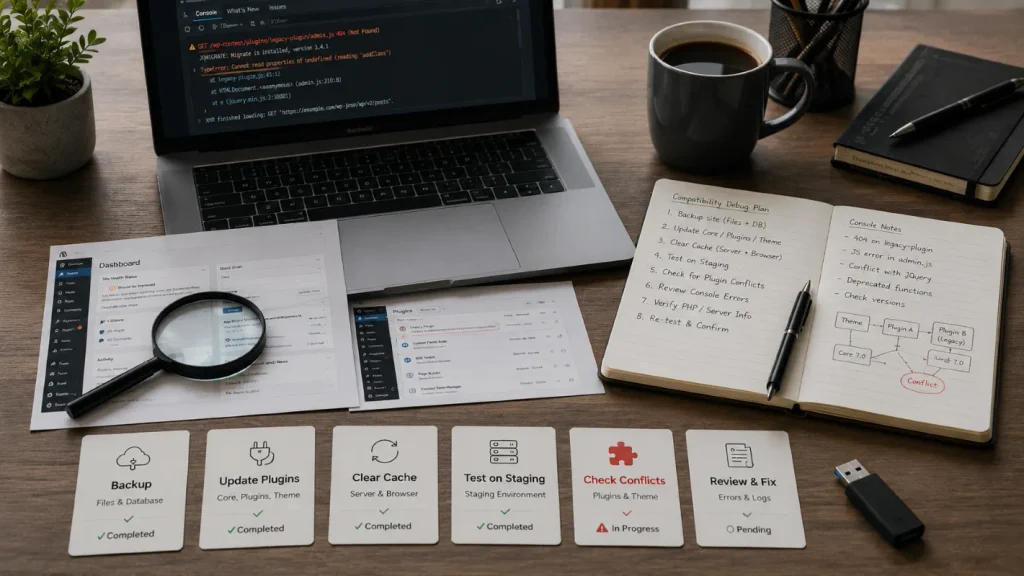
Work through these steps in order, and do as much as possible on a staging copy rather than the live site.
Here are some suggestions for you:
- Do not make multiple changes at once. If the public site still works, resist the urge to change several things on production simultaneously. It makes the real cause harder to find.
- Take a full backup. Back up the database and files before troubleshooting, so any step is reversible.
- Clear every cache. Clear the browser, WordPress, server, object, and CDN caches, then reload the admin. If a minification plugin is combining admin assets, exclude wp-admin from it.
- Update plugins and theme. Check each active plugin's "Tested up to" version and its changelog for compatibility with WordPress 7.0 or DataViews. Prioritize page builders, SEO plugins, custom field frameworks, WooCommerce extensions, and anything that customizes the Posts, Pages, or Media screens.
- Identify the failing screen. Note exactly where the breakage appears. A broken list screen points to a DataViews plugin. Broken editor meta boxes point to the iframe editor. A single broken block points to a custom block. A fully unstyled admin points to asset loading.
- Test for a plugin conflict. On staging, deactivate plugins, confirm the admin returns to normal, then reactivate one at a time until the culprit appears.
- Test the theme. Temporarily switch to a default theme such as Twenty Twenty-Five to rule out theme code or a custom admin stylesheet.
- Check browser developer tools. Open the console and network panels and look for 404s, failed CSS or JavaScript requests, mixed-content warnings, or blocked resources. This distinguishes an asset-loading failure from a visual compatibility conflict.
- Confirm PHP version. Make sure the host runs at least PHP 7.4, ideally a current PHP 8.x release.
- Apply the targeted fix. Update the responsible plugin, theme, or custom block, correct the caching or asset configuration, or fix the custom code. The goal is to resolve the underlying conflict, not just hide the symptom.
Should you roll back from WordPress 7.0?
You should know, rolling back should be a last resort, not a first response!
A downgrade can temporarily restore a broken screen, but it leaves you on an older version, potentially without current security fixes, and it does not solve the underlying compatibility gap.
If a rollback is genuinely needed as an emergency measure, treat it as a controlled, temporary step. Take a complete backup first, understand the implications for the database and plugins, and continue investigating the real cause in parallel on staging.
Can WordPress 7.0 compatibility problems affect the front end too?
Yes. Although most reported issues are in the admin area, a plugin or theme with a deeper compatibility problem can affect both the backend and the public site, depending on how it hooks into WordPress.
After making any compatibility change, test the front end as well: homepage, key landing pages, forms, login, search, navigation, mobile layout, any ecommerce or checkout flow, analytics, and SEO-critical functionality.
A backend fix is not finished until the public site is confirmed to be working.
What website owners should do before a major WordPress update
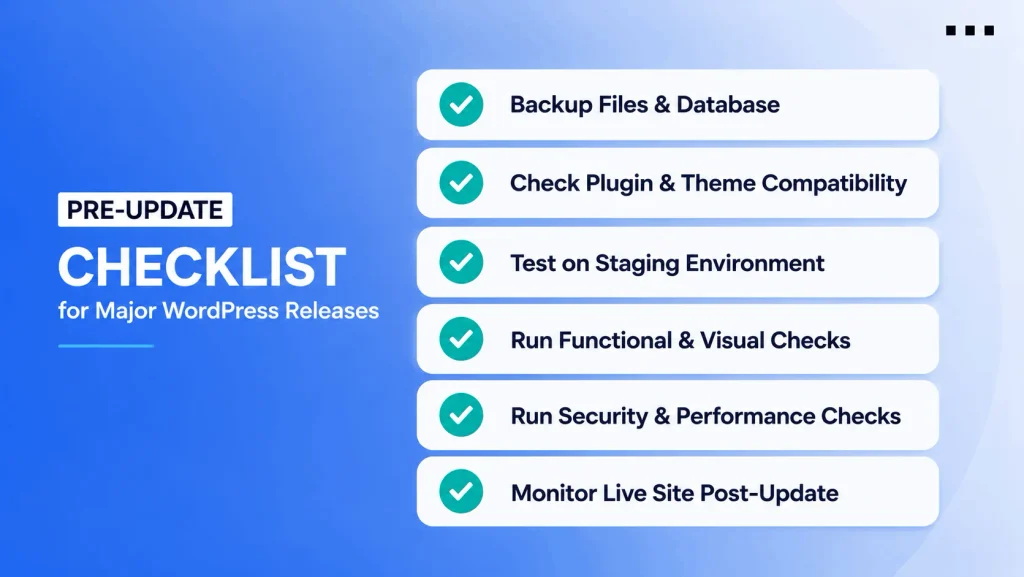
The safest approach is to treat a major release as a change-management exercise rather than a one-click update. A sound process reduces the chance of a broken admin in the first place:
- Take a full backup of files and the database.
- Review plugin and theme compatibility, focusing on anything that touches the Posts, Pages, or Media screens or the editor.
- Test the update on a staging environment first.
- Run functional and visual checks on both the admin and front end.
- Run security and performance checks.
- Monitor the live site for a short period after deployment.
This matters most for business-critical sites, where a broken backend or a broken form can directly cost leads, sales, or operating time.
How Notionhive approaches major WordPress releases
At Notionhive, we maintain WordPress sites that businesses rely on to generate leads and run daily operations, so we treat a major release like WordPress 7.0 as a system-level event rather than a routine click.
Before updating a site under maintenance, we review the full plugin and theme stack against the release's known breaking changes, test in staging, and verify both the admin and public sites after deployment.
If your WordPress backend is behaving unusually after upgrading to 7.0, the first step is to identify the exact component causing the conflict, rather than assuming the site needs to be rebuilt or rolled back. In most cases, the fix is specific and contained.
The takeaway
WordPress 7.0 is a major step forward for the platform, and like any major release, it can expose compatibility gaps in existing sites.
A broken-looking admin dashboard is rarely a disaster and rarely a WordPress fault. It almost always traces to one specific plugin, block, theme, or asset-loading issue, and the right response is calm, systematic diagnosis followed by a targeted fix.
For business-critical sites, handling major updates through a proper staging and maintenance process is what keeps a routine upgrade from becoming an outage.
If your site's admin or front-end needs a closer look after a major update, get in touch with Notionhive, and we'll help you sort it out.
Frequently asked questions
Why is my WordPress dashboard broken after updating to 7.0?
The most common reason is a plugin, custom block, or meta box that has not been updated for WordPress 7.0's new DataViews admin interface or its iframed editor. WordPress 7.0 changed the underlying admin architecture, so components built for the old structure can render incorrectly until updated.
Why does my WordPress backend look like it has no CSS?
An admin that appears as unstyled text on every screen usually means the admin stylesheets are not loading. This is typically caused by caching, minification, mixed HTTP and HTTPS content, a CDN issue, or file permissions. It is generally not specific to WordPress 7.0, even when it starts after an update.
Are my plugins compatible with WordPress 7.0?
It varies by plugin. The highest risk is with plugins that add columns, filters, or bulk actions to the Posts, Pages, or Media screens, or that add panels to the editor, because those areas change the most. Check each plugin's "Tested up to" version and changelog before updating.
Should I roll back from WordPress 7.0?
Not as a first step. A rollback can be a short-term emergency workaround, but identifying and fixing the specific compatibility issue is the better long-term solution and keeps you on a supported, secure version.
Can WordPress 7.0 break my website's front end?
It can, if a plugin or theme has a compatibility problem that affects both areas. Many 7.0 issues are limited to the admin, but you should always test the public site after making any fixes.
Is a broken WordPress dashboard a sign of malware?
Usually not. A broken admin after an update is far more often due to compatibility, caching, or asset-loading issues than to a security breach. Still, a malware scan is a reasonable precaution if you notice other suspicious behavior.
What should I do first if my dashboard is broken?
Take a backup, avoid changing multiple things at once, clear all caches, and note exactly which screen is broken. That single observation, whether it is a list screen, the editor, a single block, or the whole admin, quickly points you to the right cause.

About Author
Tareq Bin AliTareq Bin-Ali, PMP, is the Director and Chief Operating Officer at Notionhive, where he leads digital strategy and operations for clients navigating today's marketing landscape. With deep expertise in project management, digital marketing, and operational leadership, he has spent his career turning ambitious strategy into disciplined, scalable execution.